 Quick Qualifier
Help
Simple, step-by-step help with your Quick Qualifier site. If you get stuck, email support@quickqualifier.com and we'll help you.
What do you need help with?
Signing in for the first time
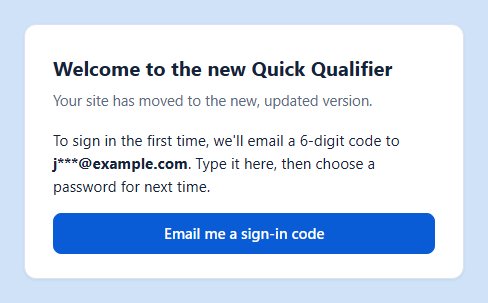
The first time, we email you a 6-digit code instead of asking for a password.
- Go to your site's address, for example janesmith.quickqualifier.com. (Don't know it?)
- You'll see Welcome to the new Quick Qualifier. Click the blue button, Email me a sign-in code.
- Open your email. Look for a message from Quick Qualifier that says "is your Quick Qualifier sign-in code". The 6 numbers are in the subject and in the message.
- Go back to your site and type the 6 numbers in the Sign-in code box. Click Sign in.
- Choose a password, type it twice, and click Save password. It needs at least 7 characters, including one of these: ! @ # $ or %.
- Read the short note about the Terms of Service, tick I agree to the Terms of Service, and click Continue. You only do this once.
Signing in after that, or a forgotten password
- Go to your site. Type your password and click Sign in.
- Leave Remember me on this device ticked on your own computer or phone, so you don't have to sign in every time.
Forgot your password? No problem. Click Email me a sign-in code under the password box and sign in with the code instead. Then you can choose a new password: click your name at the top right of the page, then My account, then Change next to Password.
The sign-in code didn't arrive
- Wait a minute or two. Email can take a moment.
- Look in your spam or junk folder.
- Still nothing? On your site, click send a new code. Only the newest code works, and each code works for 15 minutes.
- The site shows where it sent the code, for example j***@gmail.com. If that isn't your email address anymore, email support@quickqualifier.com and we'll change it for you.
Finding your site's address
Your site's address is your username followed by .quickqualifier.com. If your username is JaneSmith, your site is janesmith.quickqualifier.com.
- Old bookmarks and qqwebsite.com links still work. They take you to your new site.
- You can also type your username on our Sign in page and click Go to my site.
- Tip: once you're on your site, bookmark it, or add it to your phone's home screen.
Don't know your username? Email support@quickqualifier.com with your name and company.
Getting the old screens back
If you prefer the calculators the way they used to look, you can switch back. The math is the same either way.
- Open any calculator, for example Conventional.
- At the top of the page, find the two buttons New and Classic.
- Click Classic. Your calculators now open the old way every time.
- Changed your mind? Click New to switch back.

Making a PDF for a client
- Open a calculator, fill it in, and click Calculate.
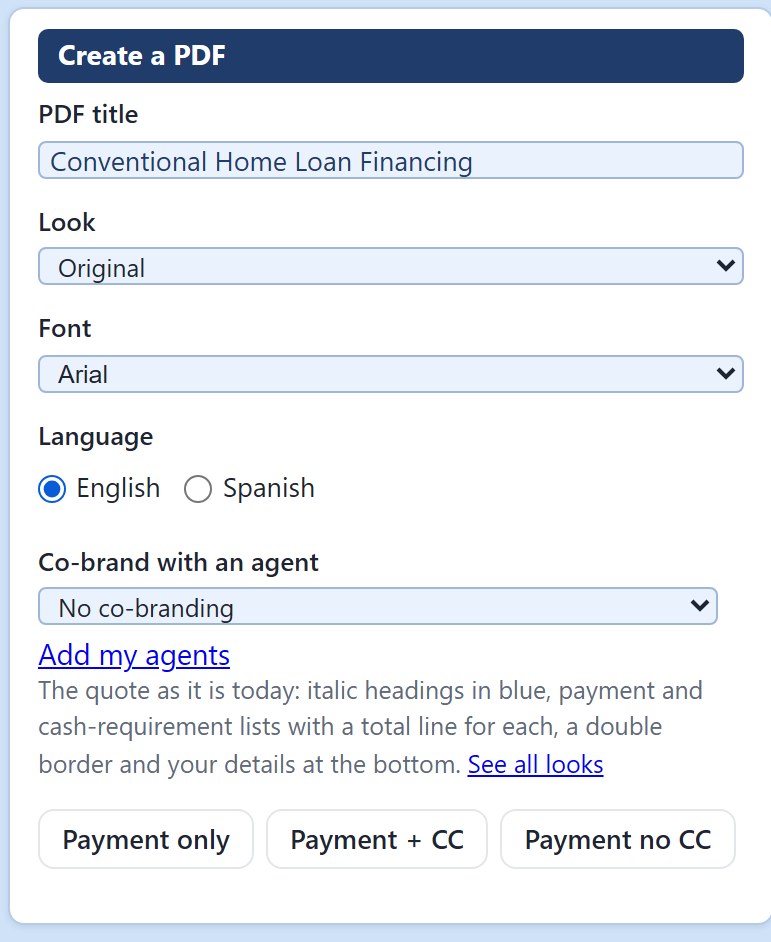
- Scroll down to the box called Create a PDF.
- Under Look, pick a style: Original, Classic, Itemized, Modern or Compact. The words under it describe each one.
- Click one of the buttons in that box, for example Payment + CC. Your PDF opens. You can print it, save it, or attach it to an email.
To choose the style, font and color your PDFs always start with, click your name at the top right of the page, then My PDFs.
Renewing your subscription
When it's time to renew, a strip across the top of your site tells you. If your subscription has already ended, your site shows the payment screen as soon as you sign in.
- Click Renew in the strip at the top.
- Existing customers: choose Existing customer, first year, $95. Click Continue.
- Type your billing address and your card details.
- Click Pay. You'll see Payment received. Thank you! and your site is ready to use.

Changing your card, receipts, or cancelling
Once you've paid on the new site, you can do all of these yourself:
- Click your name at the top right of the page, then My account.
- Next to Subscription, click Manage billing.
- There you can change your card, see and download receipts, or cancel. If you cancel, your site stays open until the end of the time you've paid for.
Still need help?
Email support@quickqualifier.com. Tell us your name and your site's address, and what you were trying to do. A screenshot or a photo of your screen helps too.